Calem Blogs
Admin Tip: Color-Coding Dropdown Fields in Calem
Color-coding dropdown fields can be implemented through client config changes at client/conf/CmConf.custom.js. The screenshot below shows a work order list with color-coded fields in Calem. In addition to color-coded fields out of the box, admin can add color-coded fields through config changes.
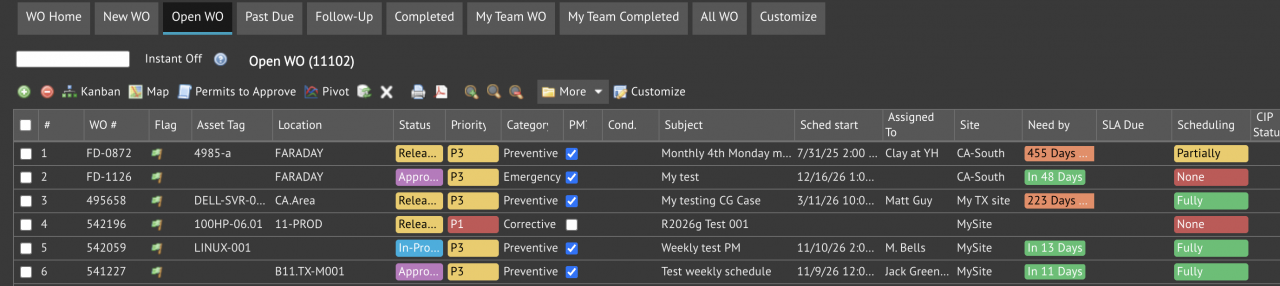
The first step is to enable color display for a field. For instance, "monitored_id" is the field Id in the sample in asset table (cm_asset). Both standard fields in Calem and custom fields added in an implementation can be color-coded through client config changes.
// For standard fields, add the following line to client config for the field id.
CmMetadata['cm_asset']['fields']['monitored_id']['is_color']=true;

// For custom fields, add the following line for custom field.
CmMetadataCustom['zc_cm_asset']['fields']['monitored_id']['is_color']=true;
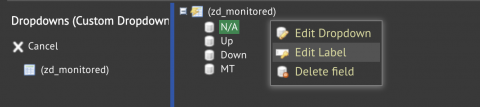
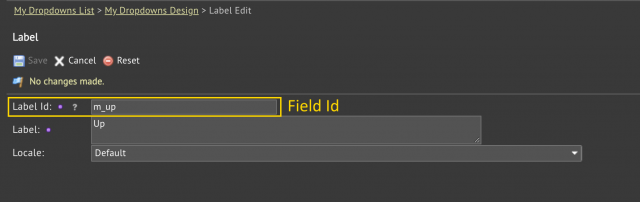
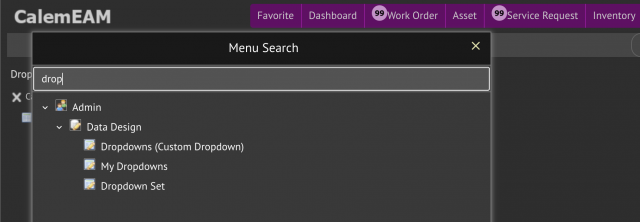
Next, provides a map of colors to dropdown Ids in client config. The dropdown may be a standard one in Calem, or a custom "MyDropdown" added. The Ids of a dropdown can be viewed from "Edit Label" menu of a dropdown (at Calem Designer at Admin | Data Design | Dropdown - see the menu tree in screenshot below).
Finally, log out and log back into Calem to verify a field coloring in a list view.
// Provide a map of colors to Ids
CmConf['fcolor_conf']['cm_asset']['monitored_id'] = {
  def: 'not_monitored',
  m_down: {fg:'white', bg:'#c85454'},
  not_monitored:{fg:'black', bg:'#efcb5f'},
  m_up:{fg:'white', bg:'#4bc06f'}
};
The dropdown field colors used in Calem are defined in client/conf/CmConf.js. You may use the colors in Calem as a reference. The config section is: CmConf['fcolor_conf'].
Additional Resources
About the author

By accepting you will be accessing a service provided by a third-party external to https://www.calemeam.com/