Calem connector for Power BI enables fetching any table or view from Calem in R2026h (November 2026) so clients can create own dashboards. Work orders (cm_wo) are fetched from Calem to Power BI in the screenshot below.
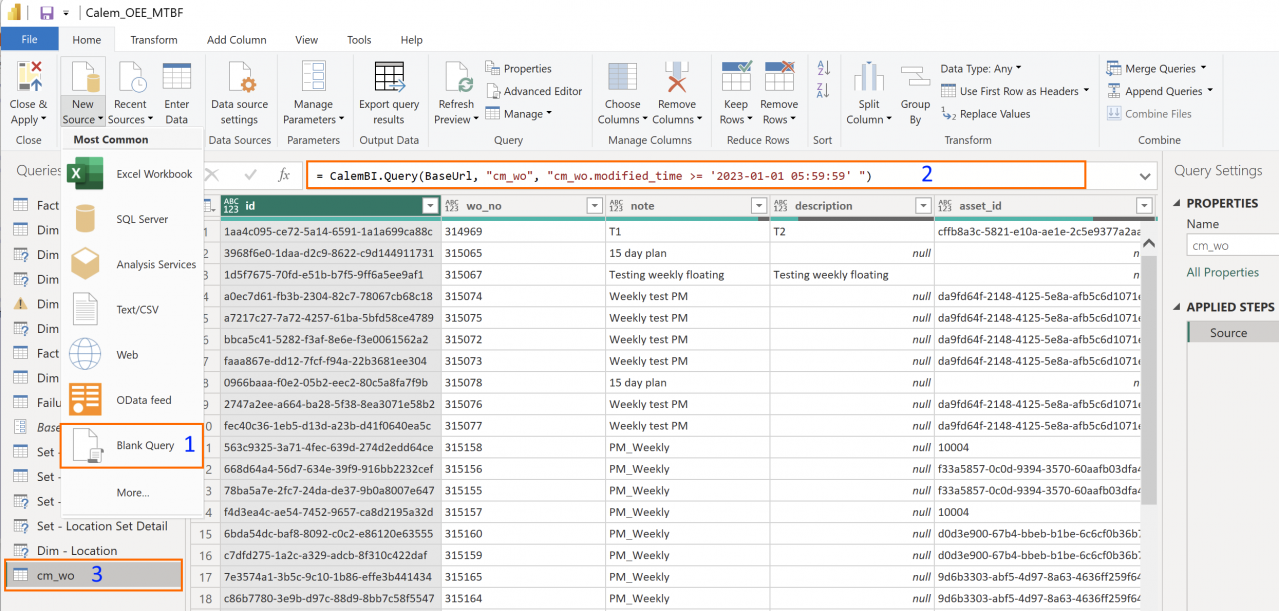
Here are the steps to add data from Calem in Power BI Desktop.
- Go to Home | Transform data | Edit parameters, set BaseUrl for your Calem. For instance,
https://acme.calemeam.com/api/search
- Next, launch Transform Data screen: Home | Transform data | Transform data
- Open a query window to fetch a data object (a table or view): Home | New source | Blank query (1 in screenshot above). Enter a query clause including table or view name (see the list of tables and views at Calem: Admin | Report | Data Dictionary), and optionally a where clause (the "w" parameter in Calem REST API for data search).
- The query below fetches work orders from 1/1/2023. Calem stores datetime in GMT time zone. For instance, for US Central dashboards, query time '2023-01-01 05:59:59' is 0:00 am (2 in screenshot above).
- Right click on the query at the bottom left and rename it to "cm_wo" (3 in the screenshot above)
= CalemBI.Query(BaseUrl, "cm_wo", " cm_wo.modified_time >= '2023-01-01 05:59:59' ")
- You may repeat the process to bring in more objects from Calem.
- The query below fetches all rows in department table (cm_dept) without a parameter to filter data.
- Rename the query to "cm_dept".
= CalemBI.Query(BaseUrl, "cm_dept")
Additional Resources
- Part 1: Transform Calem Data into KPIs with Power BI
- Introducing the New Reporting Module in Calem
- Making a Shared Search Required
- How to Use the Calendar View for Work Orders
- How to Set Up Map Views in Calem
- How to Visualize Work Orders by Open WO Chart
- Work Order Logbook
- How to Manage Asset Relationship in Calem
- Dashboard Module Training
- PM Module Training
- Work Order Module Training
- How to Manage Resource Schedules
- How to Do Weekly Schedules by Teams
- User Guide and Admin Guide (customer account required)
- Calem Enterprise Training Site
- Calem Enterprise Blogs
- Calem Enterprise demo